Browser Media Exports: Measured Files, Failed Targets, and Tradeoffs
Reproduce our image and video exports with downloadable source files, exact settings, measured sizes, transparency comparisons, and browser limitations.
Measured exports: try the same files
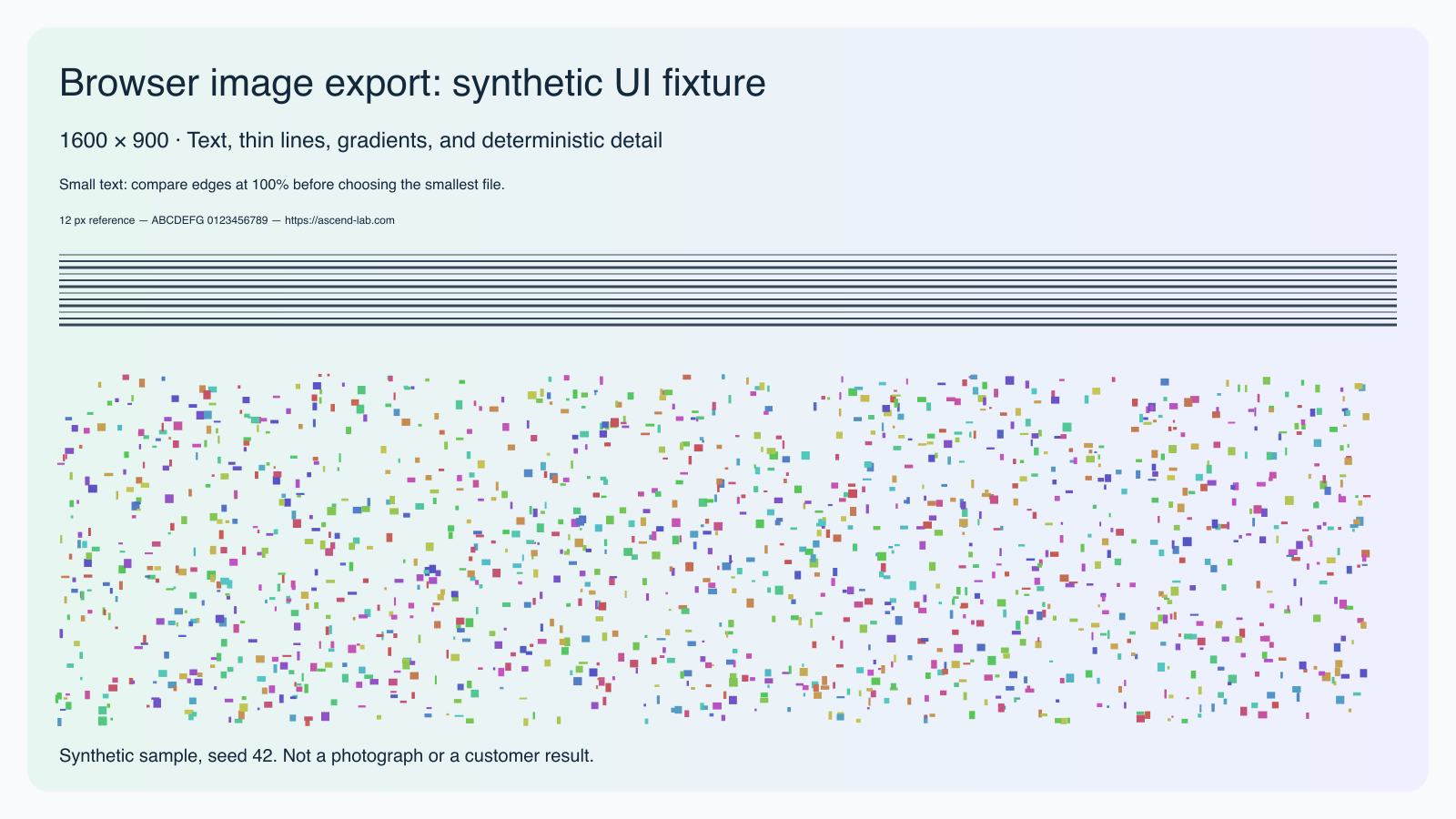
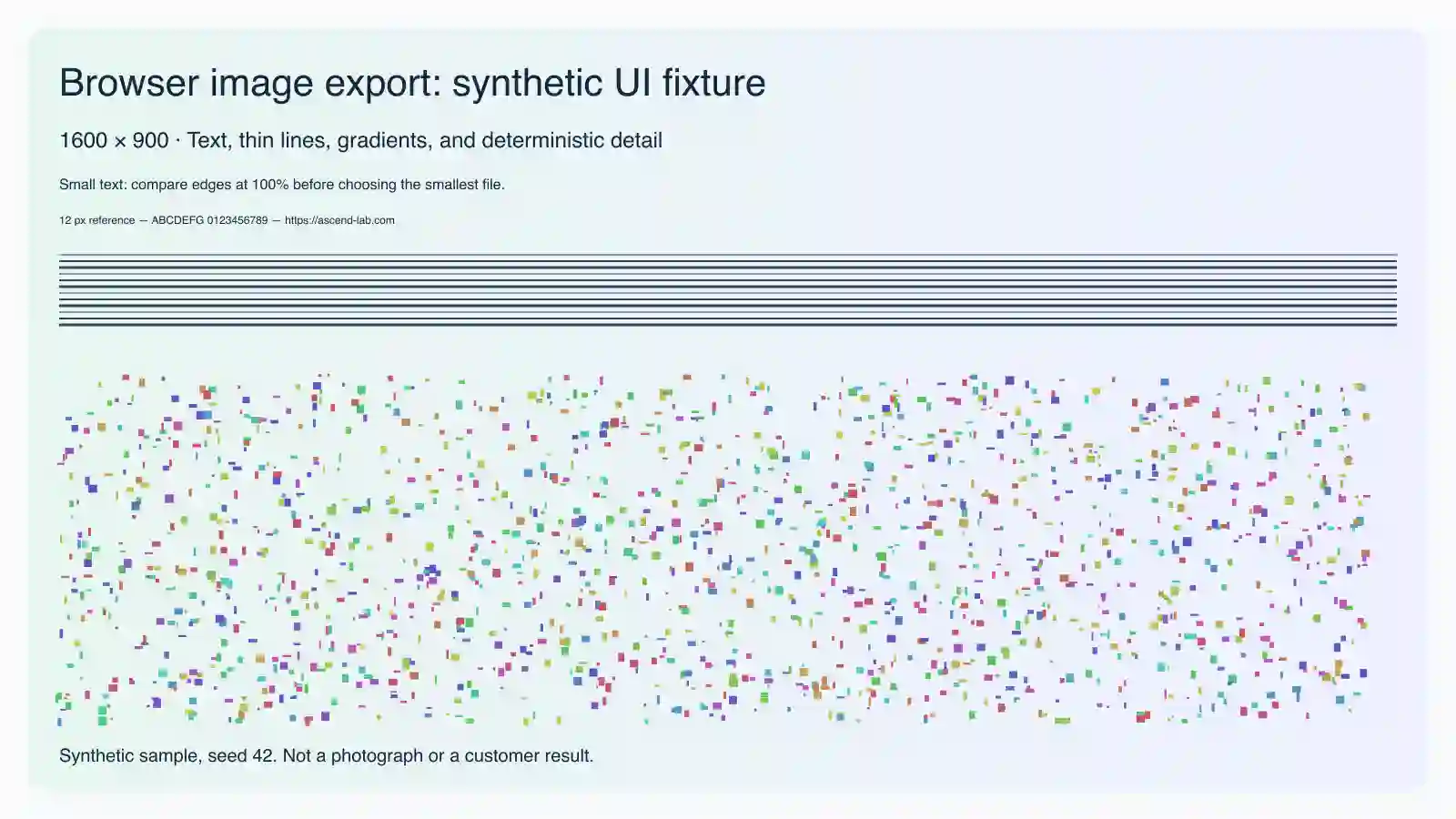
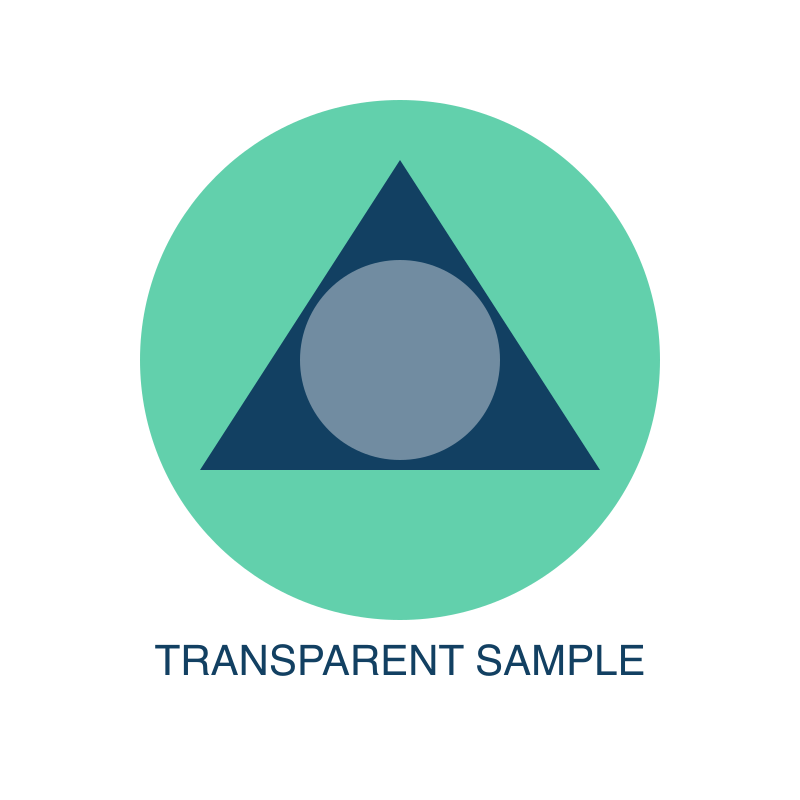
Recorded September 6, 2026 in Chrome 151.0.0.0 on macOS (browser User-Agent). These two synthetic samples isolate text, fine detail, gradients and transparency. They are not photographs, customer data, or a representative benchmark of every image.
The experiment called the same image-processing functions used by our compressor with its white JPG background setting. It checks browser encoding behavior; it is not a complete test of the upload/download interface or other browsers.
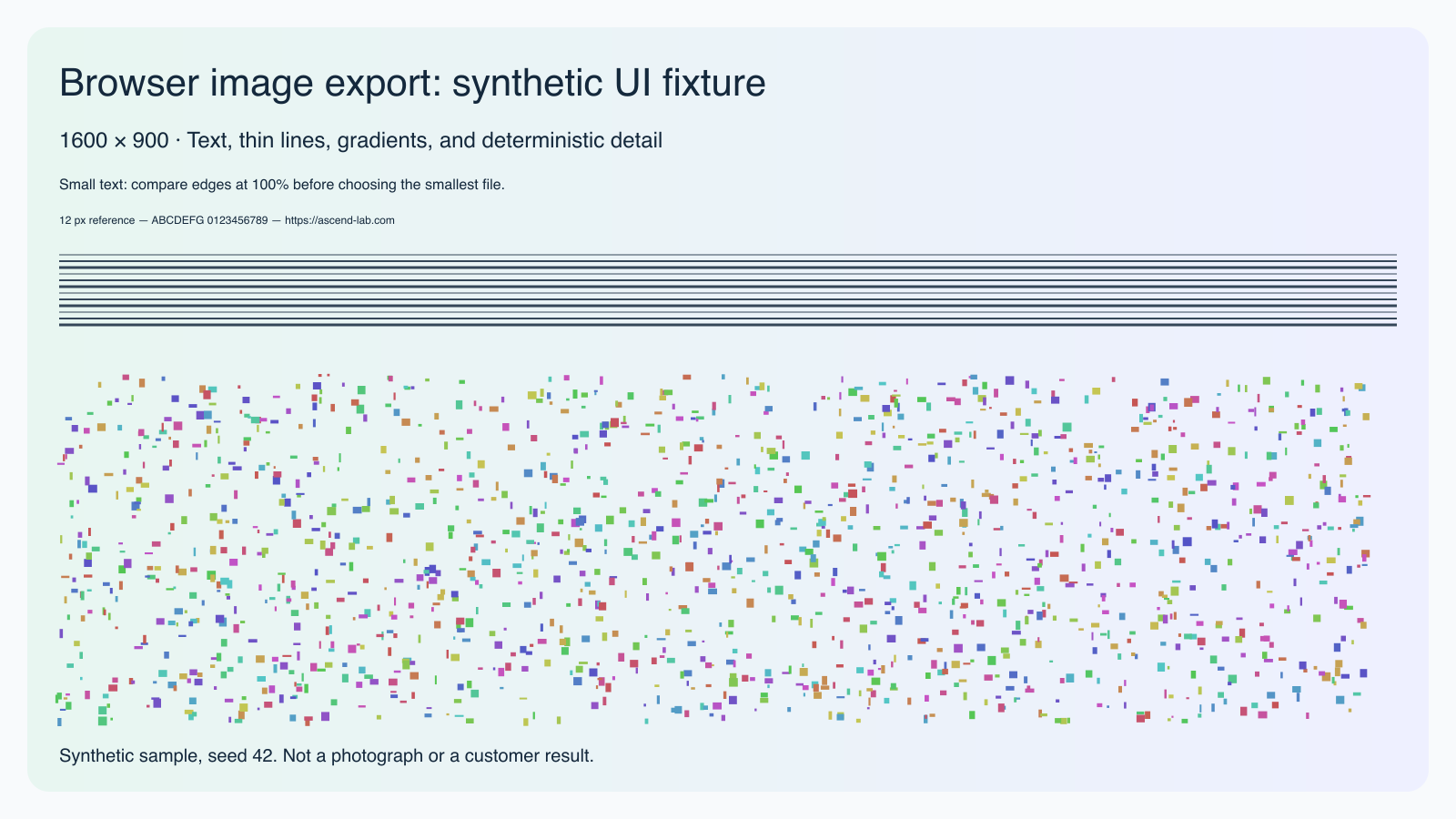
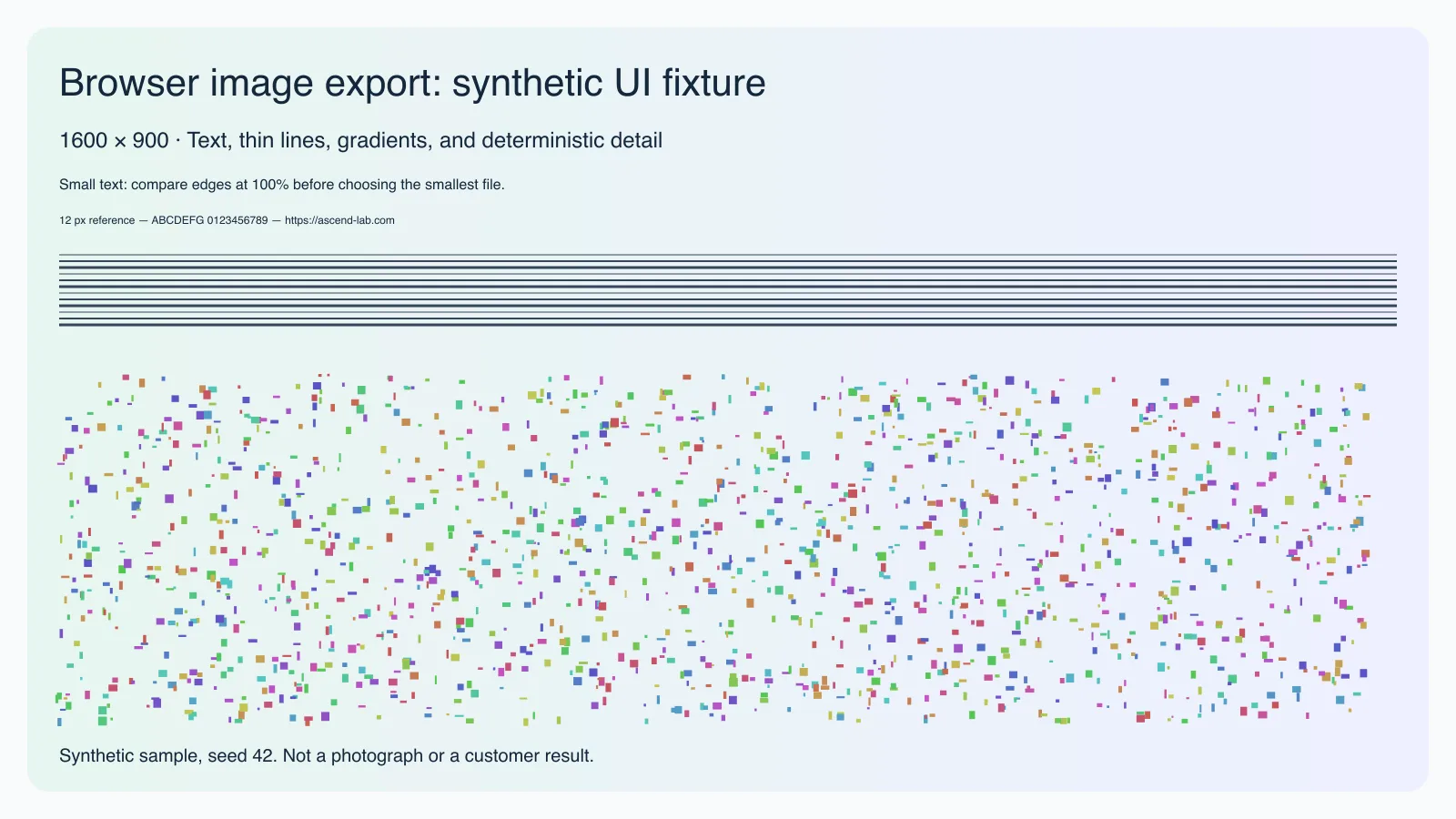
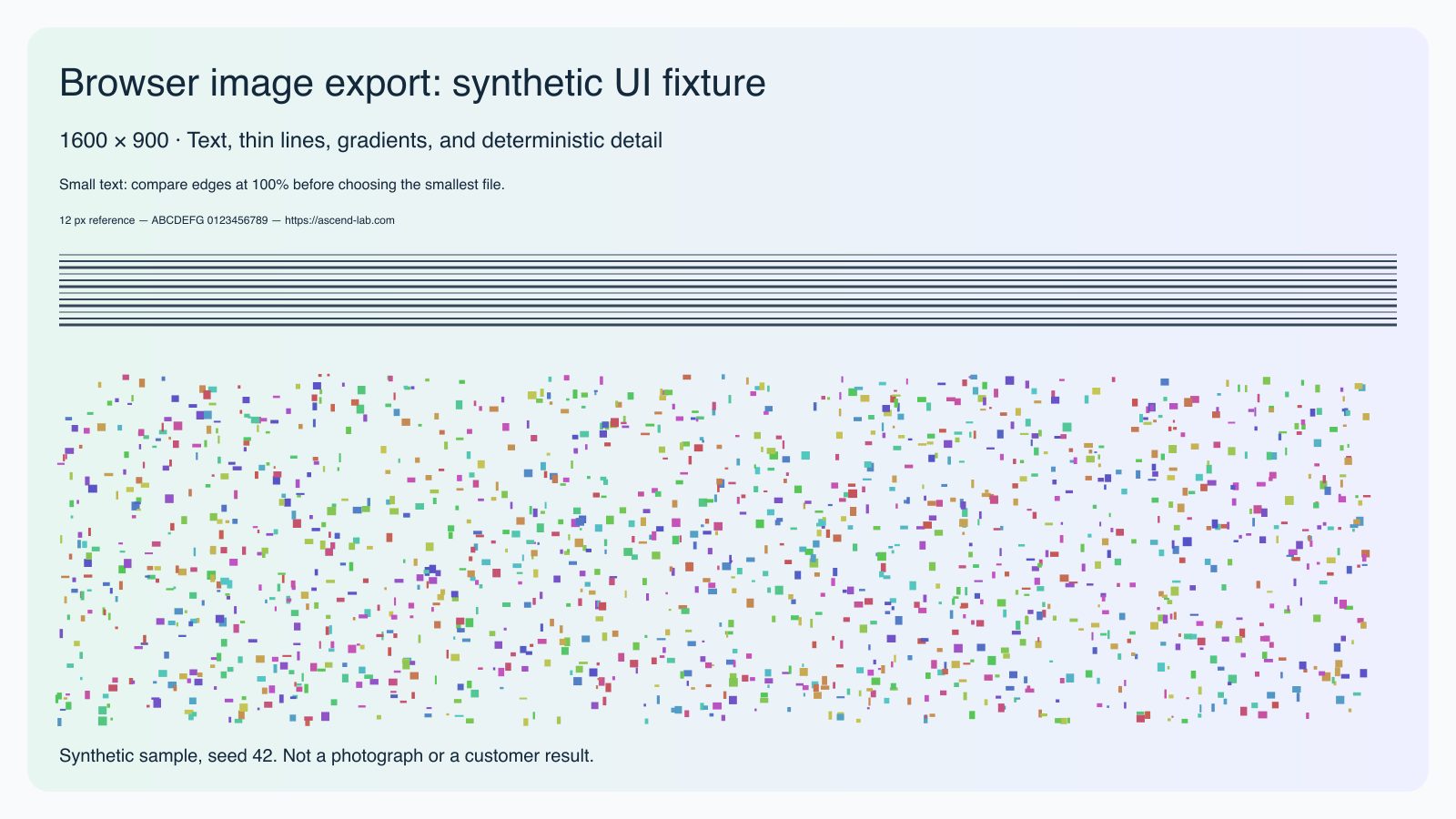
Text and detail · 1600 × 900
Download original PNGDownload editable SVG source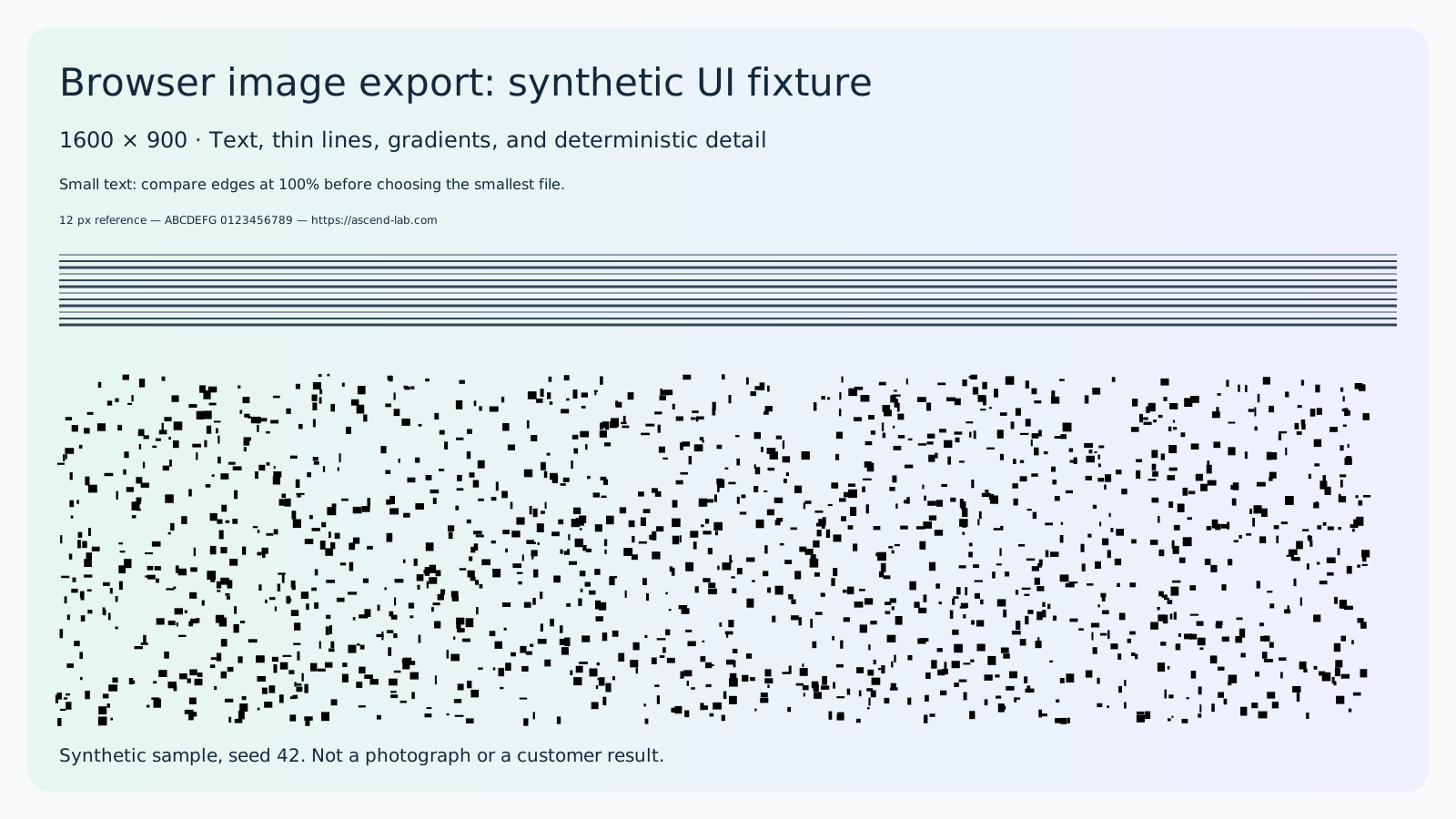
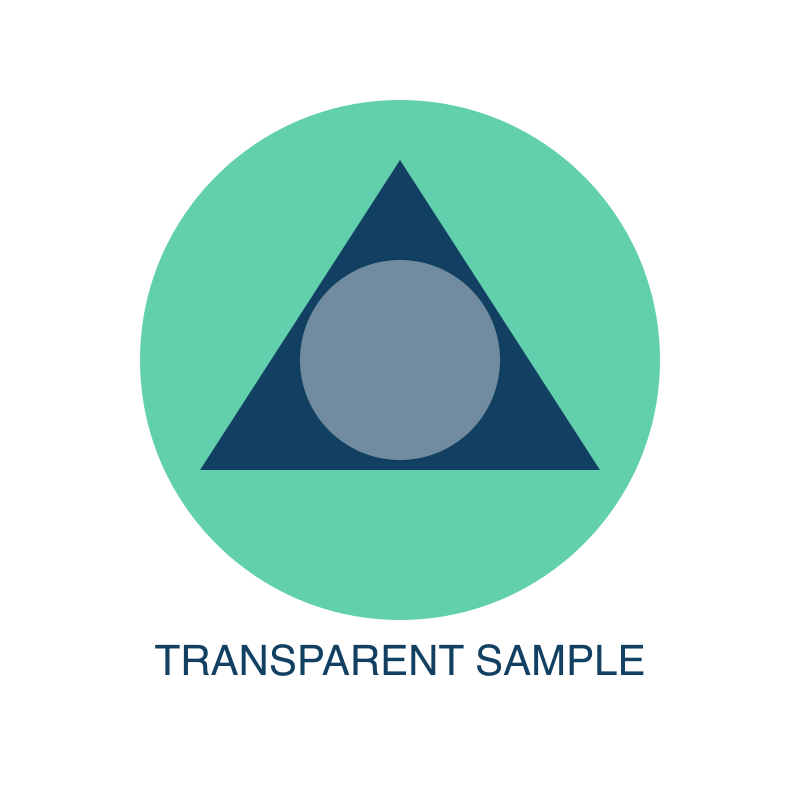
Transparent badge · 800 × 800
Download original PNGDownload editable SVG source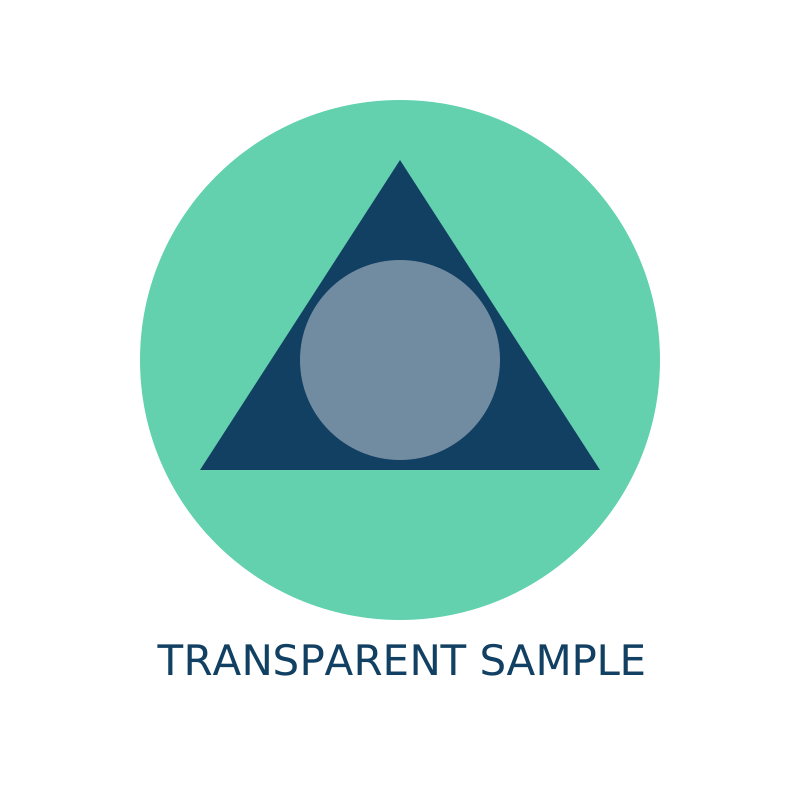
| Sample / setting | Input | Output | Result |
|---|---|---|---|
| Text: PNG, original dimensions | 156,833 | 190,496 | Download output |
| Text: WebP, quality 82 | 156,833 | 83,364 | Download output |
| Text: JPG, quality 82, white background | 156,833 | 161,872 | Download output |
| Text: WebP, quality 82, within 800 × 450 | 156,833 | 40,052 | Download output |
| Text: WebP, 10 KiB target, original dimensions | 156,833 | 31,180 | Download output 10,240-byte target missed after 8 attempts. |
| Text: AVIF, quality 82 | — | No AVIF file | Browser returned another format; the tool rejected the fallback. |
| Badge: PNG, original dimensions | 31,873 | 53,576 | Download output |
| Badge: WebP, quality 82 | 31,873 | 17,808 | Download output |
| Badge: JPG, quality 82, white background | 31,873 | 24,802 | Download output |
| Badge: WebP, quality 82, within 800 × 450 | 31,873 | 13,486 | Download output |
| Badge: WebP, 10 KiB target, original dimensions | 31,873 | 12,620 | Download output 10,240-byte target missed after 8 attempts. |
| Badge: AVIF, quality 82 | — | No AVIF file | Browser returned another format; the tool rejected the fallback. |



File integrity and method reference
Compare a downloaded file with its SHA-256 digest before reproducing the result. These sample files are provided for testing with AscendLab or other image tools.
Canvas export at quality 0.82, original dimensions unless stated; JPG uses a white background. Target mode tries eight quality settings without resizing.
- alpha-fixture-jpeg.jpg
221b90635eb5f6e69918225ed6001206494a9a7829f0868585fede00f799c83c - alpha-fixture-png.png
76936e79c570e36ae0eafed8d1179ea8b72a91923fa653c9291484b034a9ad62 - alpha-fixture-webp-half.webp
84eb48ec63a19da475933af6d7999d3510da109528f2771bf45086a20d3b6ca5 - alpha-fixture-webp-target-10k.webp
48d15a34e10644dbd9bfc9a3aab36aa6ac9b0bc34ad848e57b4674f1aa2633a4 - alpha-fixture-webp.webp
70626e3efa9a07461b16c559088079e4fe1135725bb095baaac244bbc369c14e - alpha-fixture.png
5438a48a84eb165de0d5a42d456ecffeff43717a684dfe3791a8ebfab0abafce - alpha-fixture.svg
746a3cc71129b9013d4335fd8d1497e4091061421efbca630a7cfc55da5a438d - ui-fixture-jpeg.jpg
7e31bf1e74b46ccb979ce106404128d13cdce43c118b951ad51cd79d2d42981f - ui-fixture-png.png
e68f97704af62f44c9c0f7ad74e034957033590afd65ddf1b17ec313f225c5e8 - ui-fixture-webp-half.webp
4aedb201ed33a59b88de2ce616939088633cdba825076a9fd4572ea77b2cfe98 - ui-fixture-webp-target-10k.webp
52ef5bc53d1ec380472bc9e4e349bfb61449cf7bd6af4cef824b5786087e3d0c - ui-fixture-webp.webp
156e50f1f388640f5ab7094fa754af44dd26e18cf85206f93634a04949365874 - ui-fixture.png
24d03973136a76b89e062f5444ad5f4e8156541e870370f630bd60ca39d65fbc - ui-fixture.svg
f0e2e0736a860eac0dfa08be27e11e3a76e6907628fb06a7e3fbe8a30ce9891f
What these measurements tell you
We prepared two synthetic images and one short generated motion clip, then exported them in Chrome on September 6, 2026. The downloadable files above let you inspect our results and repeat the comparison with your own browser. These are controlled examples, not a claim that every photograph, screenshot, or video compresses by the same amount.
The most useful result was not the smallest file. Re-exporting our 156,833-byte text sample as PNG produced 190,496 bytes: about 21% larger. A JPG at quality 82 was also slightly larger than that source. A tool can encode a file successfully without improving it. Keep the original when the new file offers no useful tradeoff.
Reproduce the image comparison
- Download the original text sample PNG from the measured-exports section. Start from that source for each run; do not compress an already compressed output.
- Open Image Compressor, choose WebP, set quality to 82, and keep the original dimensions. Our output was 83,364 bytes at 1600 × 900, about 47% smaller than the source.
- Inspect small lettering, diagonals, gradients, and the detailed panel at full size. The same quality number is not a guarantee of visually equivalent results across formats.
- For the smaller-dimension comparison, enable Limit dimensions in Image Compressor and set maximum width 800 and maximum height 450. Export WebP at quality 82. Our direct processing experiment produced 40,052 bytes; browser encoder versions may produce different bytes.
- Try the 10 KiB target with original dimensions. Our engine tried eight quality settings and stopped at 31,180 bytes. It did not reach 10,240 bytes. Reduce dimensions or revise the target instead of assuming a target input guarantees a matching output.
The downloadable artifacts come from a local browser experiment using the compressor's actual image-processing functions. The experiment bypassed the file-picker and download interface. It verifies the encoding results for these inputs, not every step of the public interface. Encoder versions and intermediate saves can change exact bytes.
Transparency changes the decision
The transparent badge starts at 31,873 bytes. WebP at quality 82 produced 17,808 bytes and retained transparent corners. JPG produced 24,802 bytes with a white background, matching the compressor's JPG setting. Put both over a dark background to see why these files cannot be used interchangeably.
Choose Image Format Converter when the destination requires a specific format. If the graphic must blend into different backgrounds, use an alpha-capable format. JPG has no transparent background to preserve; choose the intended matte color or retain the original.
The badge's 10 KiB target also failed: its smallest result in this run was 12,620 bytes after eight attempts. Transparency and detail still cost space even in a visually simple graphic.
An AVIF option is not evidence of AVIF encoding
Both AVIF attempts failed in this Chrome run. The canvas returned a different format and the processing function rejected that fallback. No AVIF file appears in the downloads because none was produced. Browser image decoding support does not, by itself, establish export support. Try WebP or PNG if your browser reports that an output format is unavailable.
Check the video as a separate tradeoff
Use the generated motion clip and measured presets below to compare resolution, frame rate, file size, and sound. The 440 Hz tone is deliberate test audio; lower your playback volume before listening. The clip is a moving test pattern, not footage of people or a customer screen recording.
Open Video Compressor, start with Web upload, and compare Email attachment or Silent preview from the original file. Silent preview intentionally removes the audio track. The smaller email version reduces the height and frame rate as well as changing encoding quality, so a size difference cannot be attributed to CRF alone.
During this check we found and corrected a resolution mismatch: a control labeled 720p had limited the longest edge to 720 pixels. The corrected control limits height to 720 pixels, preserves aspect ratio with even dimensions, and does not upscale. Check the displayed output dimensions before starting; portrait and landscape files will have different widths.
For a real recording, inspect the duration and dimensions with Video Info Inspector, then remove unused time with Video Trimmer before compressing. Choose a readable frame with Video Thumbnail Extractor. A test-pattern result does not predict text legibility or compression ratio for your recording.
What remains outside this test
We have not measured Safari, Firefox, mobile memory limits, photographs, HDR video, color-profile fidelity, or long recordings in this case study. The browser's CPU and memory budget can make a short successful export a poor predictor for a large file. Keep source files, compare the exported content at its intended display size, and use a controlled production workflow when metadata or color fidelity is essential.
See the Media Publishing Workflow for the order of decisions. The measurements here are evidence for a few specific choices, not a universal quality score or a promised upload size.
Measured video exports: one eight-second source
Recorded September 6, 2026 in Chrome 151 on macOS. A local browser worker ran the same ffmpeg.wasm core shipped with this site, with commands matching the corrected presets. Native FFmpeg generated the source and independently decoded the results; it did not encode the three measured outputs. This is an engine experiment, not a complete public upload/download test.
The original is a synthetic moving test pattern with a 440 Hz tone. Players start muted; lower your volume before enabling sound. All four files are eight seconds long. Independent stream inspection confirmed H.264 video in each file, AAC audio in the source/web/email files, and no audio track in Silent preview.
Original: 1280 × 720, 30 fps, H.264 + AAC
4,968,197 bytes
Download originalWeb upload: 1280 × 720, 30 fps, CRF 32, AAC 96 kbps
918,859 bytes
Download outputEmail attachment: 854 × 480, 24 fps, CRF 35, AAC 64 kbps
259,522 bytes
Download outputSilent preview: 1280 × 720, 24 fps, CRF 32, no audio track
748,275 bytes
Download outputThe email file is about 95% smaller than this source, while changing resolution, frame rate and quality together. This result does not predict the reduction or legibility of a real screen recording. Compare playback before choosing an output.
Reproduction commands and file integrity
Source creation used native FFmpeg with these inputs and settings. The downloadable source is the stable reference; another FFmpeg version may encode different bytes.
ffmpeg -f lavfi -i "testsrc2=size=1280x720:rate=30:duration=8" -f lavfi -i "sine=frequency=440:sample_rate=48000:duration=8" -c:v libx264 -preset medium -crf 18 -pix_fmt yuv420p -c:a aac -b:a 128k -movflags +faststart -shortest motion-source.mp4
web: browser WASM arguments
-i input.mp4 -map 0:v:0 -map 0:a? -c:v libx264 -preset veryfast -crf 32 -pix_fmt yuv420p -vf fps=30 -c:a aac -b:a 96k -movflags +faststart motion-web.mp4
email: browser WASM arguments
-i input.mp4 -map 0:v:0 -map 0:a? -c:v libx264 -preset veryfast -crf 35 -pix_fmt yuv420p -vf scale=854:480,fps=24 -c:a aac -b:a 64k -movflags +faststart motion-email.mp4
silent: browser WASM arguments
-i input.mp4 -map 0:v:0 -an -c:v libx264 -preset veryfast -crf 32 -pix_fmt yuv420p -vf fps=24 -movflags +faststart motion-silent.mp4
- motion-email.mp4
ec7e55c2570cc9c871a4a7e84ec3c63f22dada49b76ab72b091ca8eb7727eed2 - motion-silent.mp4
817840e543bccf233ed74f17954551dfbee59d08d94da128d7b2705323144ce3 - motion-source.mp4
3e6e94291999fd53a92a5633a6467e6b0718d7e6e07c9cbc91316084fede3061 - motion-web.mp4
485d4961763fc1102eeda4afd286e944c42ee7d15c9298cdb8a13e8da2356ded